Media type
Video and movies
A video is one clip of up to 7 seconds. A movie chains up to 6 five-second scenes into about 30 seconds of continuous footage.
Video needs a graphics card with 12 GB or more and the video models that automatic setup downloads. It's the slowest thing MoneyForge makes: about 1 to 2 hours per 5 seconds of footage on an RTX 3060 12 GB, less on newer cards. Start with a short test before a long job.
Video (one clip)
- On Create choose Video.
- Set Length (seconds), up to 7.
- Choose Video quality: 480p, or 720p with Pro.
- Describe the scene and the motion: "a red fox running through snow, camera tracking alongside, golden hour".
- Click Generate ✦.
To animate an existing image, use Animate in the Gallery instead.
Movie (several scenes)
A movie makes up to 6 scenes of 5 seconds. Each scene starts from the last frame of the one before, so the footage flows.
Simple movie: one prompt
Choose Movie, set Length (seconds) up to 30, write one prompt and generate. The same prompt carries across every scene.
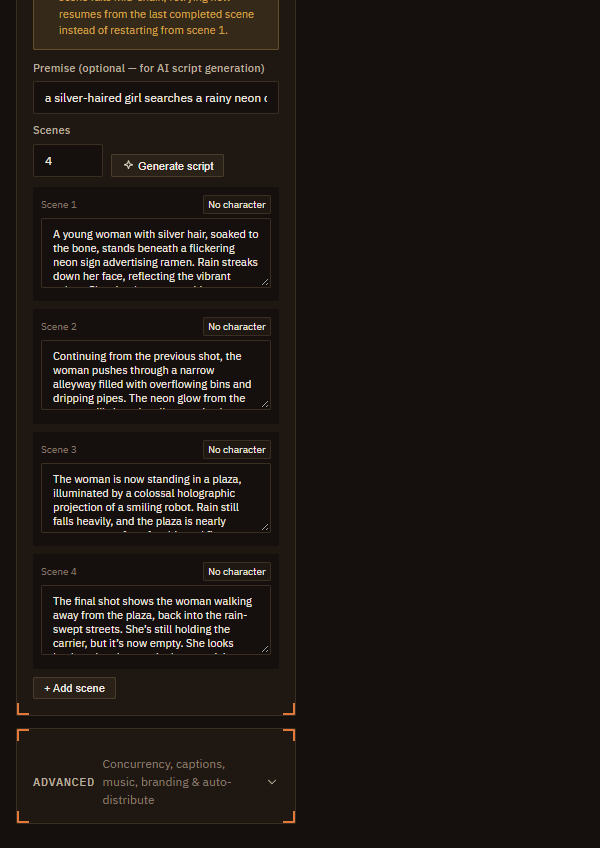
Multi-shot movie: a prompt per scene
- Tick Multi-shot.
- Optionally type a Premise, set Scenes (2 to 6) and click Generate script. This needs a Gemini key or the free local AI model.
- Edit each scene's Visual prompt, and pick which cast character appears in it.
- Add scenes with + Add scene, then generate.
If a scene fails, Retry failed on the Dashboard resumes from the last finished scene.
Want music under it? Tick Background music in Advanced (needs a track in your music library).
Recipe: a 2-minute anime short
One movie is about 30 seconds, so a 2-minute film is four movies joined together. Keeping the same character and style across all four is what makes it look like one film.
- Design your hero. Make an Image with the Anime / manga style: "anime girl with short silver hair, red jacket, front view, plain background". Generate a few and pick the best.
- Save the character. Download that image and create a character from it on the Characters page (front slot).
- Write four parts. Split your story into four 30-second parts, each with up to 6 scenes. For example: 1 arrival, 2 discovery, 3 conflict, 4 ending.
- Make part 1. On Create: Movie, 16:9 or 9:16, style Anime / manga, tick your character, tick Multi-shot, and write 6 scene prompts. Generate.
- Check, then repeat for parts 2 to 4 with the same character, style and aspect ratio. Use Remix on part 1 to keep every setting the same. If one scene looks wrong, fix just that scene with Scenes in the Gallery (see Gallery).
- Join them. Download the four movies and put them in order in any video editor (for example CapCut, Clipchamp, which comes with Windows, or DaVinci Resolve). Add music and titles there.
Plan the time: 24 scenes of 5 seconds is about 24 to 48 hours of rendering on an RTX 3060 12 GB. Run one part at a time, overnight, and check each before starting the next.
Want narration instead of music? A reel with the Talking object or Normal style is faster and adds voice and captions automatically.
Home · User Guide · Support · Privacy Policy · Terms of Service