Consistency
Characters
A character keeps the same face across every image, scene and video, which is what makes a series or a story work.
Characters need the Character Consistency Module, which automatic setup installs.
Create a character
- Open Characters and click + New character.
- Enter a Name, an optional Description, and optionally a Default voice (used when this character narrates in a reel).
- Upload reference photos into the four slots: Front, Side, Three-Quarter, Back. At least the front photo; 512×512 pixels or larger.
MoneyForge finds the face, crops it and removes the background automatically. The very first photo you upload also downloads the background-removal model (about 1 GB), so it can take several minutes. Later uploads take seconds.
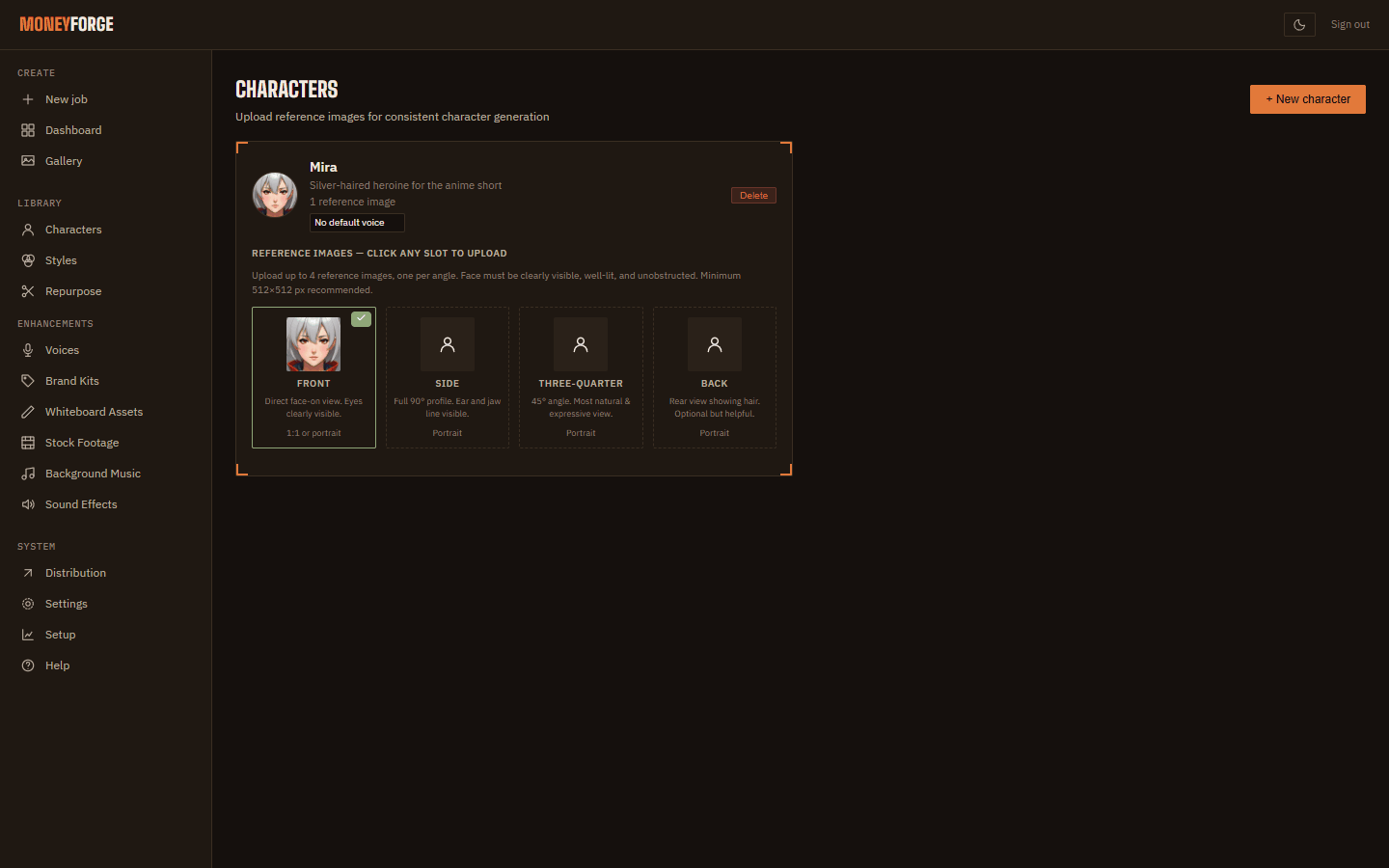
- Use clear, well-lit photos where the face fills a good part of the frame.
- One person per photo. No sunglasses, heavy shadows or hands over the face.
- For an anime or illustrated character, generate a front-facing image first, then use it as the character's photo.
- Only use photos of people who have agreed to it.
Use a character
On Create, tick the character under Character. You can cast up to 4 characters in one job. In a multi-scene movie or reel, each scene can use a different character from the cast.
You can also drag a single photo straight into Create without saving a character ("Face will be extracted").
Casts of 2 or more characters stay most consistent with a Gemini key added in Settings.
"Reprocess reference photos"
If this button appears on a character, its photos were processed by an older version. Click it once to bring them up to date.
Home · User Guide · Support · Privacy Policy · Terms of Service