Media type
Music videos
Upload your song and MoneyForge builds a video around it, keeping your real audio. Choose fast lyric cards or AI-generated scenes.
Use music you own or have the rights to. The music video is the only media type that keeps your song's own audio.
Step 1: Audio Source
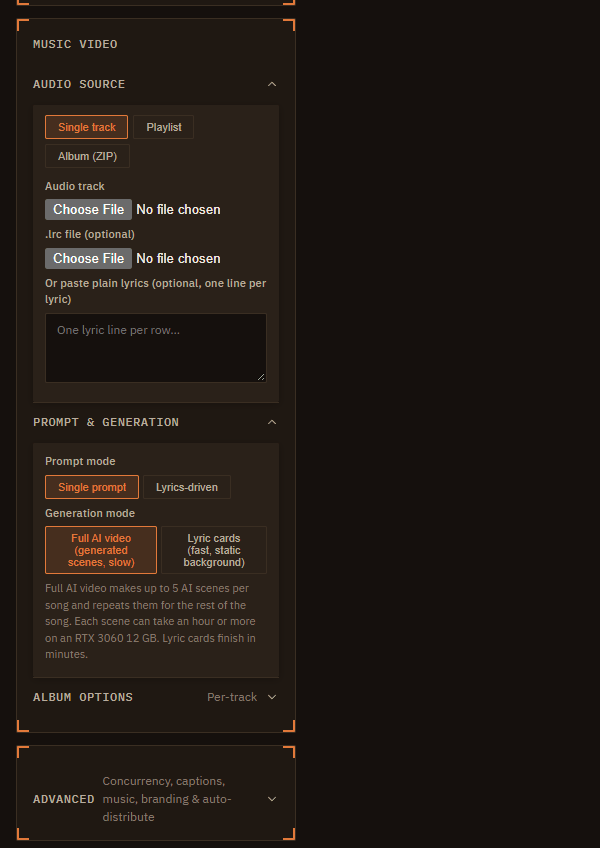
On Create choose Music video. Then pick a source:
- Single track: Audio track (.mp3, .wav, .flac, .m4a, .ogg). Optionally add an .lrc file (lyrics with timings) or paste plain lyrics, one line per lyric.
- Playlist: several audio files at once, with optional .lrc files matched by file name.
- Album (ZIP): a .zip with numbered tracks, optional matching .lrc files and an optional
album_art.jpg. Album art handling: use it as the cover only, or animate it as the opening of track 1.
Step 2: Prompt & Generation
Prompt mode:
- Single prompt: one description for the whole song; scene changes land on the beat.
- Lyrics-driven: one scene per lyric line, drawn from that line's words. Songs without lyrics fall back to beat cuts.
Generation mode:
| Mode | What you get | Speed |
|---|---|---|
| Lyric cards (fast, static background) | A generated background with your lyrics on screen in time with the song. Up to 8K. | Minutes |
| Full AI video (generated scenes, slow) | AI-generated moving scenes. Up to 5 scenes per song, which repeat to cover the rest of the song. 480p, or 720p with Pro. Needs a 12 GB card and the video models. | About an hour or more per scene on an RTX 3060 12 GB |
Step 3: Album Options (playlists and albums)
Per-track makes one video per song. Full album (continuous) also joins them into one long video; tick Show title card at each track boundary to add song titles between tracks.
Recipe: a music video for one song
- Choose Music video, aspect 16:9 (YouTube) or 9:16 (Shorts, TikTok).
- Upload the song and its .lrc file if you have one. No .lrc? Paste the lyrics, or skip lyrics.
- For a first version, use Lyric cards with a style and a prompt that sets the mood, such as "neon city at night, rain, cinematic".
- Add captions in Advanced if you want the lyrics styled; choose a 🎤 style for word-by-word highlighting.
- Happy with the look? Try Full AI video with the same prompt for moving scenes, and leave it running overnight.
Tip
Getting an .lrc file: many music players and lyrics sites export them, or you can make one with a free LRC editor. Lines look like [00:12.40] first lyric line.
Home · User Guide · Support · Privacy Policy · Terms of Service